How I Make Narrated Videos With an AI Agent (and the Skill You Can Steal)
Script, critique, scripted screen recording, synthesized voice and sound, a video built from code. The full process behind my rental-management walkthrough, with a downloadable skill and prompt guide at the end.
My First Version Was Bland
I built a rental-management system for boarding houses, and I wanted a short video to show it off on LinkedIn. The first version was built from real screenshots of the app, with smooth camera zooms, a highlight box on each feature, a title card per section, and a calm music bed. Sixty seconds, no voice.
It looked clean. My honest verdict after watching it: bland. No talking, no process flow, no explanation. It showed what the app had, never why anyone would care.
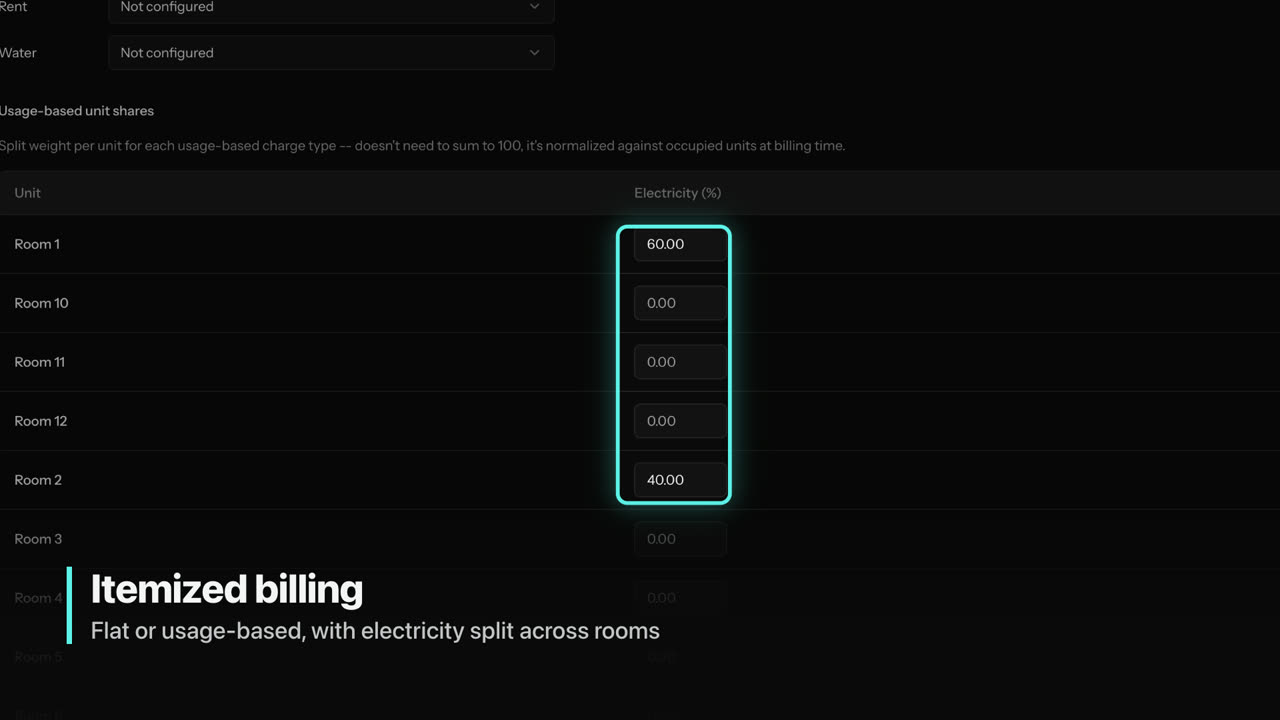
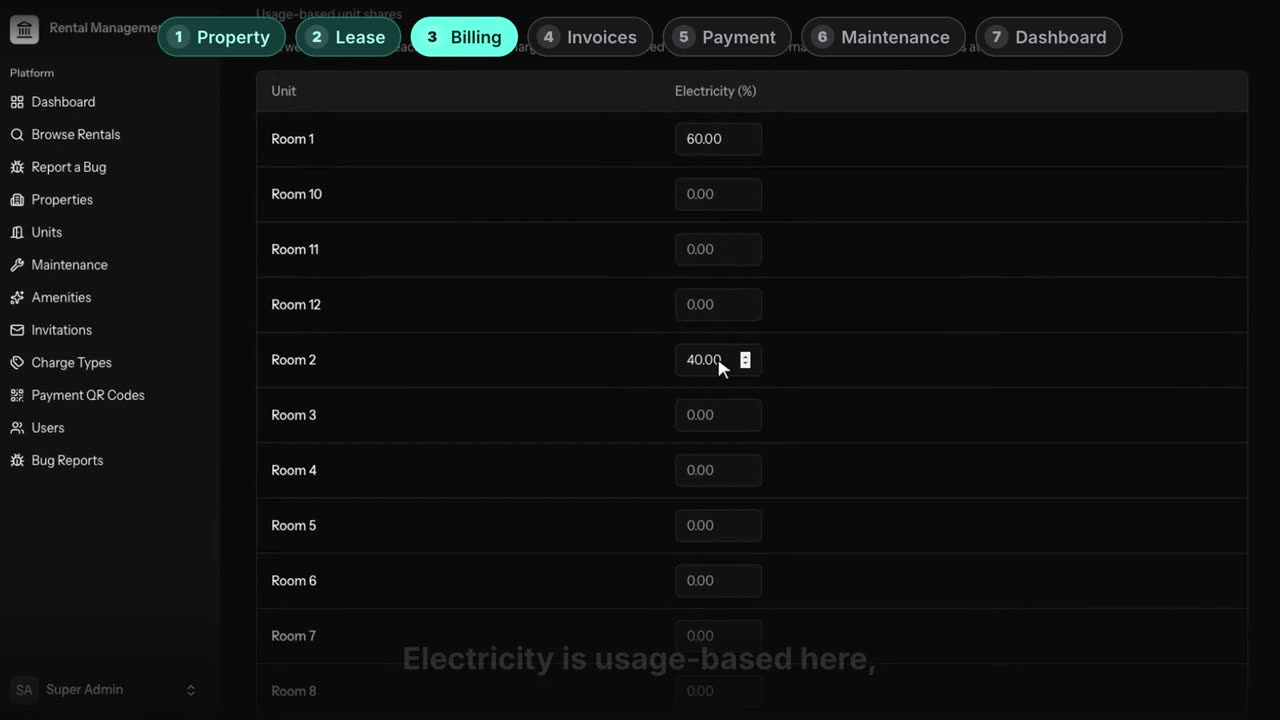
Version 2 covers the same features. The difference is the process around it, which is what this post is about. I make these with Claude Code and HyperFrames, a framework where a video is an HTML page rendered to MP4, but the process works with any AI assistant and any editor. Everything I use is at the end of the post: a skill file for coding agents and a plain prompt guide for everyone else.
The Pipeline
The rule that holds it together: every stage produces a file. The script is a Markdown table, the recordings come from a script, the voice and the music come from scripts, and the video itself is generated from a config list. When I want to change one sentence or slow down one scene, I edit one file and rebuild. Nothing is hand-assembled in a timeline editor.
1. Brief: One Sentence Before Anything Else
Before any visuals, I have to be able to write the video as one sentence. For this one:
A boarding-house owner juggles rent in WhatsApp and bills in a spreadsheet; this system follows one tenant from lease to invoice to payment; at the end, every number rolls up on one dashboard.
The brief also fixes the boring-but-decisive facts: LinkedIn, 16:9 at 1920x1080, about 90 seconds, autoplays muted in the feed (so the captions must tell the story without sound), and the real material is the running app with seeded demo data.
2. Script: A Scene Table, Not an Outline
The script is a table: scene number, time, what the voice says, what the screen shows. Version 2 has nine rows. Here are three of them:
| # | Time | Voiceover | Screen |
|---|---|---|---|
| 1 | 0–7 s | ”Running a boarding house means rent in one WhatsApp chat, electricity bills in another, and a spreadsheet that’s always out of date. So I built this.” | Chat bubbles and a messy spreadsheet pile up, then snap away to the app |
| 3 | 16–29 s | ”When a tenant moves in, I create a lease on the room. Rent lives on the lease, not the room, so two identical rooms can have different rents. …” | Recording: create a lease on a vacant room, fill rent and dates, submit |
| 4 | 29–43 s | ”Utilities are the messy part. Electricity is usage-based here, split by share: Room 1 takes sixty percent, Room 2 forty. When the monthly bill arrives, I enter it once, and the system splits it across the rooms.” | Recording: billing settings (the split), then enter an electricity bill |
Three rules shape every row:
- Follow one example end to end. One boarding house, one tenant, one bill. Viewers can follow a person; they can’t follow a feature list.
- Each line says what happens and why it matters. “Rent lives on the lease, not the room, so two identical rooms can have different rents” is a design decision a viewer can understand. “Flexible leases” is a brochure.
- Write numbers the way they’re spoken. “Sixty percent”, “Room 2 forty”. This matters twice: the voice engine reads it correctly, and the caption transcriber doesn’t turn it into something else.
Under the table sits a short truthfulness rules section, because this is a real system: every on-screen action is a real action in the app, only seeded demo accounts appear, the local database is backed up before recording and restored afterwards, and the login page (which shows the demo passwords) is never on screen. The online payment scene shows the real Stripe test checkout; the “paid” status you see comes from the manager recording a payment, not from a faked success screen.
3. Critique: The Cheapest Step
Before building anything, I ask the AI to attack the script as a skeptical viewer scrolling a feed. Is there a process, or a list? Which scene doesn’t answer “why should I care”? Would the first three seconds stop a thumb? With the sound off, do the captions alone tell the story?
Version 1 had no script at all: it went straight from screenshots to a build, so nothing ever asked these questions, and it would have failed every one. The critique is one message; rebuilding a finished video is a whole second round.
4. Record: A Script Clicks Through the App
I don’t record the screen by hand. A Puppeteer script logs in as a demo user and performs each scene’s clicks and typing, and saves one clip per scene (b2-property, b3-lease, b4-billing and so on). If a scene needs to change, I re-record only that clip.
Headless Chrome has no mouse pointer, so the script injects one into every page, plus a ripple on each click:
// Visible cursor + click ripple, injected into every page (headless Chrome has no cursor)
document.addEventListener('mousedown', (e) => {
  const r = document.createElement('div');
  r.style.cssText = 'position:fixed;width:36px;height:36px;border-radius:50%;border:3px solid #5df2e8;'
    + 'left:' + (e.clientX - 18) + 'px;top:' + (e.clientY - 18) + 'px;transition:transform .45s,opacity .45s;';
  document.documentElement.appendChild(r);
  requestAnimationFrame(() => { r.style.transform = 'scale(1.9)'; r.style.opacity = '0'; });
  setTimeout(() => r.remove(), 600);
}, true);
The mouse moves in small steps and pauses after each action so a viewer can keep up, and pages render at 2x device scale so zoomed frames stay sharp. This is the raw clip for scene 3, straight out of the recorder:
5. Voiceover: Local Text-to-Speech, One File per Line
The voice is Kokoro-82M, a small open text-to-speech model that runs on my laptop. The eleven voiceover lines live in a Python list; the script writes one WAV per line and prints its length:
VOICE = "bm_george"
LINES = [
    "Running a boarding house means rent in one WhatsApp chat, electricity bills in another, ...",
    "It starts with a property. Sunrise Boarding House has twelve rooms, ...",
    # ...
]
for i, line in enumerate(LINES, 1):
    samples, sr = kokoro.create(line, voice=VOICE, speed=1.0, lang="en-gb")
    sf.write(f"vo{i}.wav", samples, sr)
    print(f"vo{i}.wav {len(samples) / sr:.2f} s")
Those printed lengths are the real timeline. Scene timing follows the voice, never the other way round. Changing a sentence means editing one string and rerunning. Here’s the first line as it came out:
The finished voice track is then transcribed back to word-level timestamps, which drive the captions. Transcribers slip on exactly the things you’d expect (numbers, product names), so the build script carries a short list of corrections checked against the script.
6. Sound: Synthesized, Not Downloaded
The music bed and the interface sounds are generated with numpy: a warm chord pad at 96 BPM with a soft pulse, a filtered-noise whoosh for scene changes, a click when a step lights up, and a chime for the end card. The random generator is seeded, so every run produces identical files. No stock-music licences, no hunting through libraries, and everything sits at the video’s tempo.

The effects stay well under the voice: the whoosh plays at 0.14 volume, the click at 0.25.
7. Build: The Video Is Generated From a List
This is where HyperFrames comes in. A Python build script reads a config list at the top and writes the HTML composition: video clips, step bar, captions, sound cues and animation timeline.
SCENES = [
    # (start s, duration s, clip, clip start s, playback rate, step, label)
    (9.8,  9.6,  "b2-property", 0.8, 1.0,  1, "Property"),
    (19.4, 12.9, "b3-lease",    0.0, 1.35, 2, "Lease"),
    (32.3, 15.3, "b4-billing",  0.0, 1.2,  3, "Billing"),
    # ... six more
]
Each row places one recording under its voice line. The playback rate squeezes or stretches the clip to fit (anything between about 0.9x and 1.6x reads naturally). Every scene gets a slow push-in from 100% to 106% so static UI doesn’t feel frozen, and a seven-step progress bar at the top lights up as the story moves, so a viewer always knows where they are. Captions are cut into chunks of at most five words at punctuation and pauses.
Here’s the same lease recording from step 4, after the build:
And the opening hook, the one scene that isn’t a recording. This one’s a GIF, because yes, GIFs work here too:

Version 1’s build script is still in the project next to version 2’s. Keeping both is how I could put the two versions side by side at the top of this post.
8. Check, Then Render
Before rendering I run the framework’s checks (lint, layout, contrast) and take snapshots of key frames from every scene. Then I actually look at them: cut-off text, captions sitting on top of the action, the wrong step highlighted, anything from the “never on screen” list. Then the render: 105 seconds, 1920x1080, H.264, plus a thumbnail exported from a strong frame.
Small errors hide in the captions, and my first upload proved it. The build script already corrected the transcriber’s slips, but the render came from an older build, so “room two, forty” went out as “room 240.” and “Billed” as “Build,” (on the thumbnail, too). Snapshotting those moments next to the script caught it. One rebuild, one re-render, one re-upload later, the video below is the fixed one. The check list now ends with: rebuild, then confirm the render came from that build.
The Result
Same app, same features as version 1. What changed is a story, a voice, and a process that made both cheap to get right.
Steal This Workflow
I’ve written the process up in two forms. Take whichever fits how you work:
~/.claude/skills/narrated-video-workflow/SKILL.md and ask for a video.
Prompt guide: for any AI tool
Copy-paste prompts for each stage. Works with ChatGPT, Claude or Gemini, and CapCut, Premiere or DaVinci Resolve.
If you only take one thing from either file: write the one-sentence story, then make the AI critique the script before you build anything. That step costs one message. Skipping it is how my first version ended up bland.
Keep reading